Docker; uygulamaları hafif, işletim sistemi düzeyinde sanallaştırma ile geliştirmek, dağıtmak ve yönetmek için ücretsiz ve açık kaynaklı bir çözümdür. Bu kılavuzda, bir Docker konteyneri içinde bir Python uygulaması oluşturmayı göstereceğiz.
Ön koşullar
Bu kılavuzda gösterilen adımları gerçekleştirmek için aşağıdaki bileşenlere ihtiyacınız olacak:
Bir Linux sistemi. CloudSigma üzerinde kendi Ubuntu VPS’inizi yapılandırma kılavuzuna göz atın.
Docker’ın en güncel sürümü kurulmuş ve yapılandırılmış olmalıdır. Ubuntu üzerinde Docker kurulumu hakkında daha fazla bilgi edinin.
Docker Konteynerleri
Aynı ortamda çeşitli programlar çalıştırıldığında işler bozulabilir ve bozulacaktır. Ne kadar çok program eklerseniz ortam o kadar kararsız hale gelir. Bu, ortalama kullanıcılar için büyük bir sorun olmayabilir. Ancak görev açısından kritik uygulamalar söz konusu olduğunda ciddi sonuçlar doğabilir.
Sisteme ne kadar çok uygulama eklenirse saldırı yüzeyi de o kadar büyür. Ele geçirilmiş tek bir uygulama, tüm sistemin çökmesine kolayca yol açabilir.
Bu sorunları çözmek için yazılım düzeyinde sandboxing amacıyla Docker konteynerlerini kullanabiliriz:
Konteyner içindeki uygulamaların dosyalara erişimi sınırlı olur.
Konteynerleştirilmiş uygulamalar sistemde çalışan diğer süreçleri göremez.
Konteynere belirli miktarda donanım kaynağı ayrılabilir.
Bir konteynerin ağ bağlantı noktaları dışarıya açık değildir.
Yerel ve üretim ortamları arasında neredeyse her şey için tutarlı paketleme sağlar.
Bunu göstermek için Docker konteyneri içinde basit bir Python sunucusu oluşturacak, konteyneri bir imaja dönüştürecek ve imajı örnek bir üretim ortamında dağıtacağız.
Adım 1 – Dosya Sistemi Yapılandırması
Projeyi barındırmak için önce özel bir dizin oluşturacağız:
mkdir -pv python-server-container/
cd !$
Dizin içinde kodumuzu saklamak için src adlı bir alt dizin oluşturun:
mkdir -pv src/

Adım 2 – Python Sunucusunu Oluşturma
Bu adımda Python ile basit bir HTTP sunucusu oluşturacağız. server.py dosyasını oluşturun:
touch server.py
Dosyayı bir metin düzenleyicide açın:
nano server.py

Aşağıdaki Python kodunu girin:
from http.server import HTTPServer, SimpleHTTPRequestHandler

def run(server_class=HTTPServer, handler_class=SimpleHTTPRequestHandler):
    """server entrypoint"""
    server_address = ("0.0.0.0", 8080)
    httpd = server_class(server_address, handler_class)
    print("starting server...")
    httpd.serve_forever()

if __name__ == "__main__":
    run()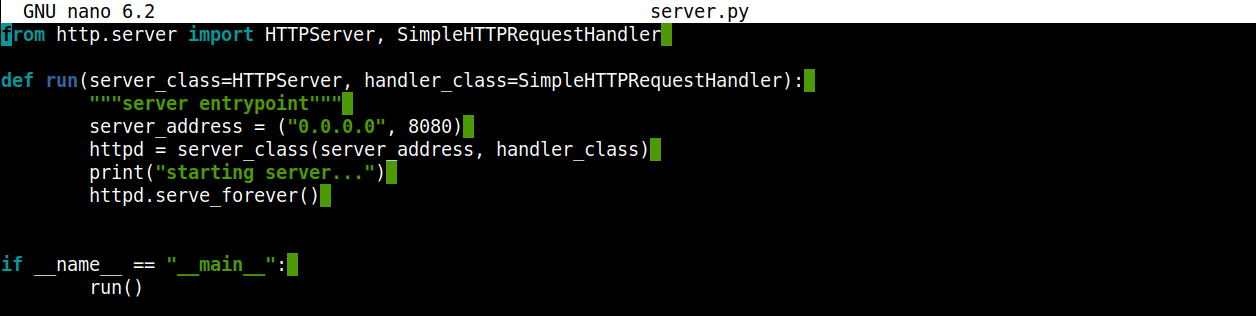
Burada:
Programı basit tutmak için standart Python kitaplığından
HTTPServersınıfını ve bir işleyiciyi kullanıyoruz.runfonksiyonu birHTTPserverörneği başlatır.server_addressargümanlarının gösterdiği gibi sunucu, 8080 bağlantı noktasındaki tüm gelen bağlantıları dinleyecektir.
Şimdi sunucunun beklendiği gibi çalışıp çalışmadığını doğrulayacağız. Sunucuyu başlatın:
python3 server.py

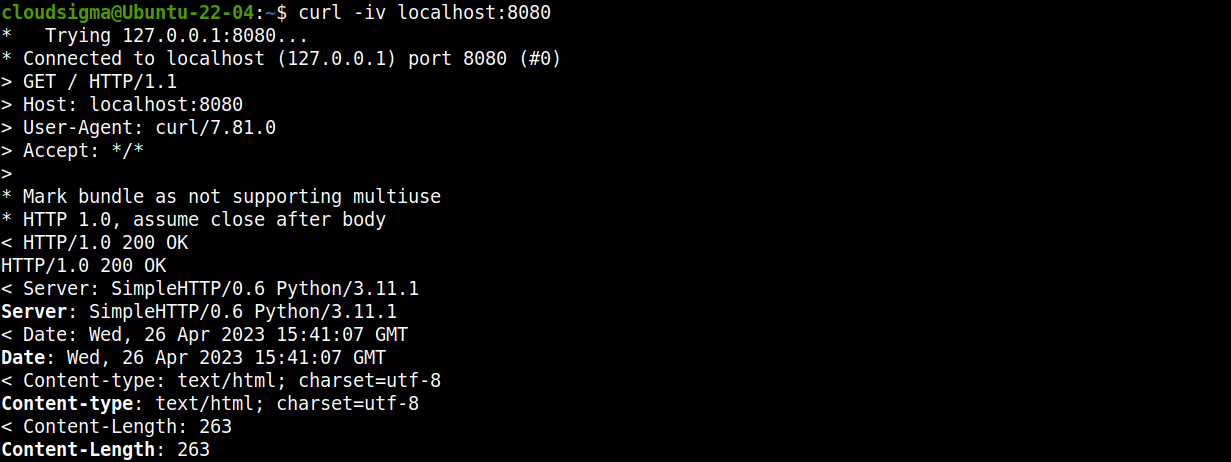
Yeni bir terminalden sunucuya istek göndermek için curl kullanabiliriz:
curl -iv localhost:8080

Alternatif olarak bağlantıya bir web tarayıcısından erişebilirsiniz:
http://localhost:8080
Adım 3 – Dockerfile Oluşturma
Dockerfile, bir Docker imajı oluşturmak için gerekli yönergeleri içerir. Dosyadaki yönergeler sırasıyla uygulanır. Dockerfile hakkında daha fazla bilgi edinin.
Projemiz için yeni bir Dockerfile oluşturun:
touch Dockerfile
Şimdi gerekli kodları içine ekleyeceğiz. Dosyayı bir metin düzenleyicide açın:
nano Dockerfile
Aşağıdaki kodu girin:
FROM python:latest

ENV SRC_DIR /usr/bin/src/test_server/src
COPY src/* ${SRC_DIR}/
WORKDIR ${SRC_DIR}

ENV PYTHONUNBUFFERED=1

CMD ["python", "server.py"]
Burada:
Her
Dockerfile,FROMyönergesiyle başlamalıdır. Bu örnekte Docker imajının temeli olarak Python’ı belirtiyoruz.ENV SRC_DIRyönergesi konteyner dizininin konumunu belirtir.COPYyönergesi, Python sunucusunu barındıransrcdizinindeki dosyaları kopyalar.PYTHONBUFFERED=1değişkeni, Python’ın çıktıları ve günlükleri doğrudanSTDOUTüzerine yazdıracağını belirtir.CMDyönergesi, konteyner çalıştırıldığında yürütülecek varsayılan komutu belirtir. Bu durumda Python sunucumuzu başlatmak için kullanıyoruz.
Adım 4 – Docker İmajı Oluşturma
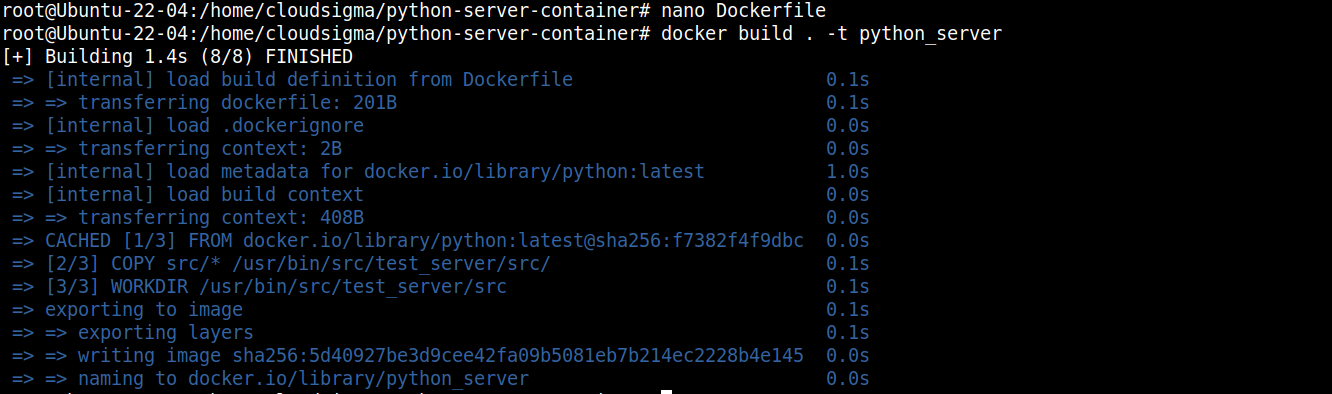
Dockerfile hazır olduğuna göre artık bir imaj oluşturabiliriz. Süreci başlatmak için aşağıdaki Docker komutunu çalıştırın:
docker build . -t python_server
Burada:
-tbayrağı Docker imajımızıpython_serverolarak etiketlemek için kullanılır.Docker gerekli tüm bileşenleri indirir ve bunları bir imajda birleştirir.
Adım 5 – İmajı Çalıştırma
İmaj dağıtım için hazırdır. Aşağıdaki komutla çalıştırabiliriz:
docker run -p 8080:8080 python_server

Burada -p bayrağını kullanarak yerel makinedeki 8080 bağlantı noktasını Docker imajına yönlendiriyoruz.
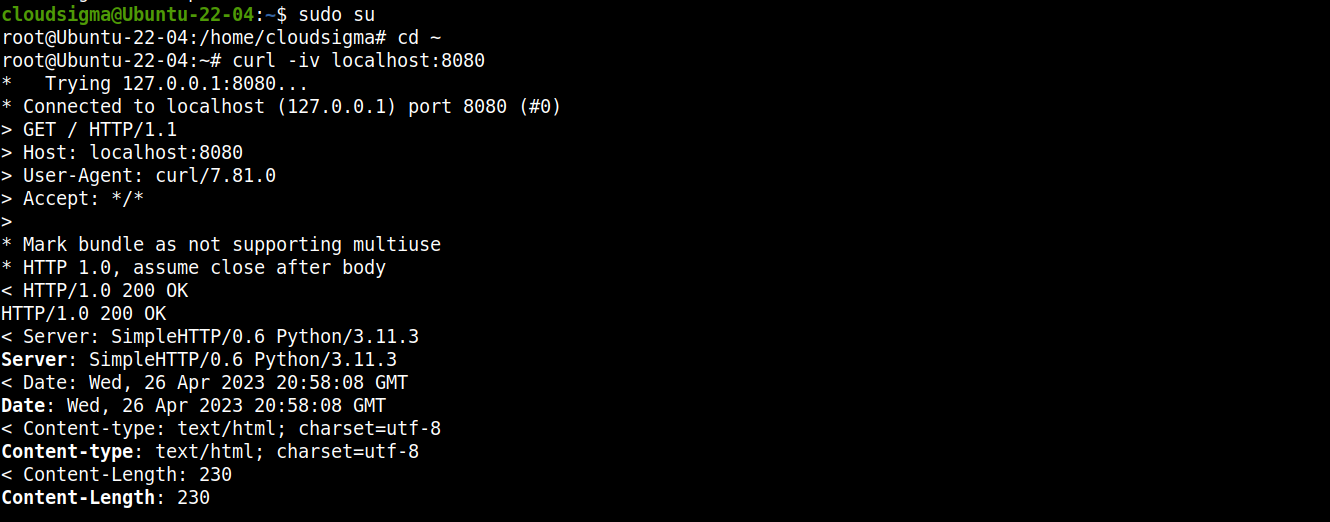
Sunucunun çalışır durumda olup olmadığını curl ile kolayca doğrulayabiliriz:
curl -iv localhost:8080

Adım 6 – Sunucuyu Sonlandırma
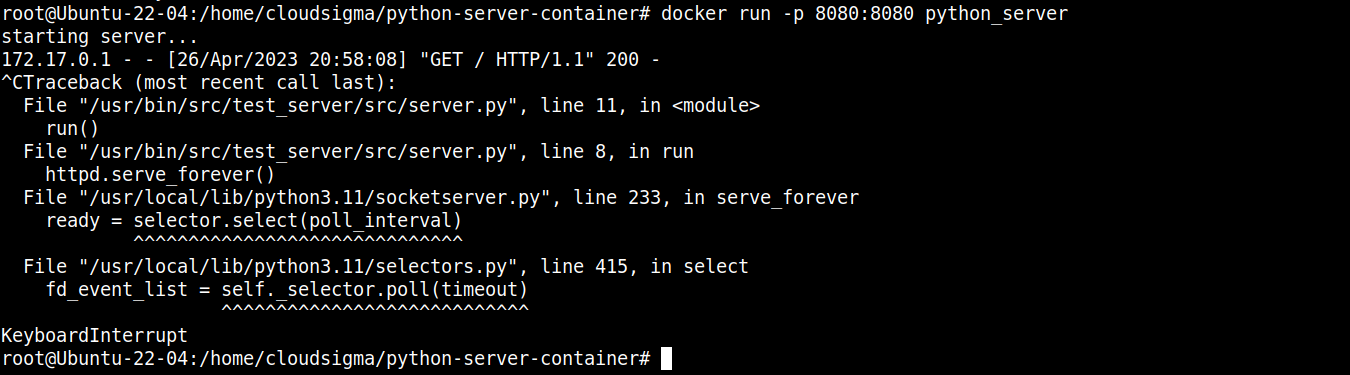
Terminalden Docker sürecini sonlandırmak için “Ctrl + C” tuşlarına basın:
Adım 7 – Docker İmajını Dışa ve İçe Aktarma
Artık Python sunucumuzu barındıran çalışan bir Docker imajımız var. Docker’ın dışa ve içe aktarma özellikleri sayesinde bu imajı başka herhangi bir sisteme taşıyabiliriz.
Önce mevcut sistemdeki Docker imajlarının listesini kontrol edin:
docker images

Hedefimiz az önce oluşturduğumuz python_server Docker imajıdır. Aşağıdaki komut bunu bir TAR arşivi olarak dışa aktarır:
docker save python_server:latest > python_server.tar

python_server.tar dosyasını hedef makineye aktardıktan sonra Docker imajını içe aktarmak için aşağıdaki komutu kullanın:
docker load < python_server.tar

Son Düşünceler
Bu kılavuzda bir Python uygulamasından Docker imajı oluşturmayı gösterdik. Basit bir Python web sunucusu oluşturduk ve bundan bir Docker imajı ürettik. Docker imajı artık herhangi bir ortamda dağıtılabilir ve tutarlı davranış beklenebilir.
Docker hakkında daha fazla bilgi edinmek ister misiniz? Aşağıdaki kılavuzlara göz atın:
Ubuntu 20.04 Üzerinde Docker ile Flask Uygulaması Oluşturma ve Dağıtma
Docker, Nginx ve Let’s Encrypt ile Django Uygulamasını Güvenceye Alma ve Ölçeklendirme
Ubuntu 20.04 Üzerinde Docker Konteynerleri ile WordPress Dağıtma
Keyifli bilişimler!
Yorumlar
Henüz yorum yapılmamış. İlk siz olun.